Your Vechilo page is one link that holds everything a customer needs: your products, photos, address, opening hours, social profiles, online ordering links and a direct WhatsApp button. Put it in your Instagram bio or share it in WhatsApp groups, and customers can find you and message you in one tap.
This guide walks through everything you can set up. None of it is required to go live, because your page already works, but each step makes it more useful.
First, claim your page
If you received a WhatsApp message with a link to your page, open that link and tap Claim this business. You will set a password, and the page becomes yours to edit. If you did not receive a link, you can register at vechilo.in/register.
After signing in you land on your business list. Tap Workspace to open the page you want to edit, or View live to see it the way customers do.
Finding your way around
Inside the workspace, everything lives in the left sidebar. The Overview screen shows your page views, WhatsApp clicks and your page link, with buttons to copy it or share it straight to WhatsApp.
1. Add your social media and online ordering links
Open Social Links in the sidebar, then tap Add link. You will see two groups:
- Social and web: Instagram, Facebook, YouTube, WhatsApp, your own website and more.
- Online ordering: Swiggy and Zomato, for restaurants and food businesses already listed there.
Pick a platform, paste your profile or listing URL, and give it a title customers will understand, such as "Order on Swiggy" or "Follow on Instagram". Drag the links to reorder them, because the top one gets the most taps. You can switch any link off without deleting it.
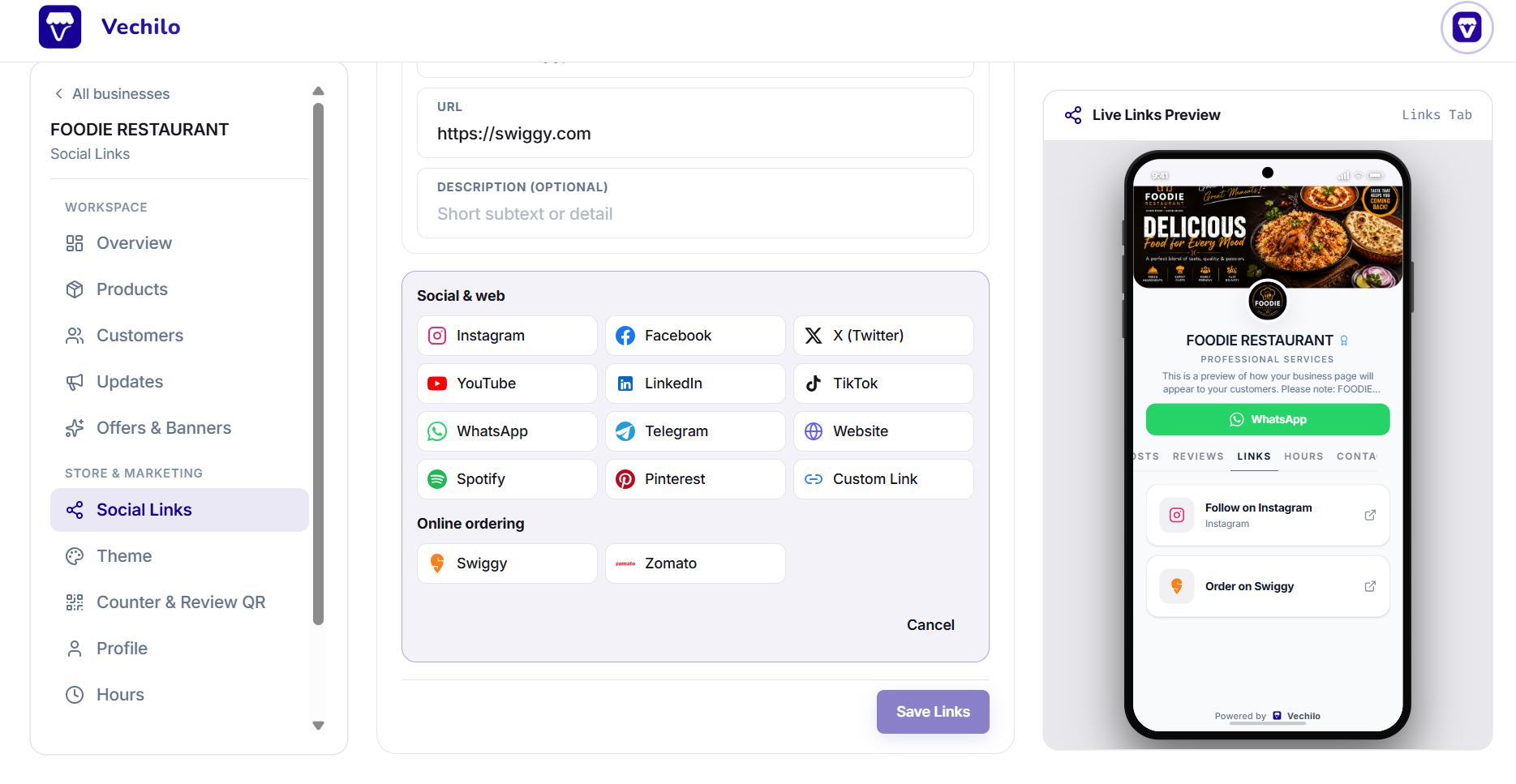
The Live Links Preview on the right shows your page on a phone as you work, so you can see each link appear before you tap Save Links.
This is what makes one link replace many. Instead of telling customers you are on Instagram, and Swiggy, and Zomato, you share your Vechilo link once.
2. Upload your logo and cover photo
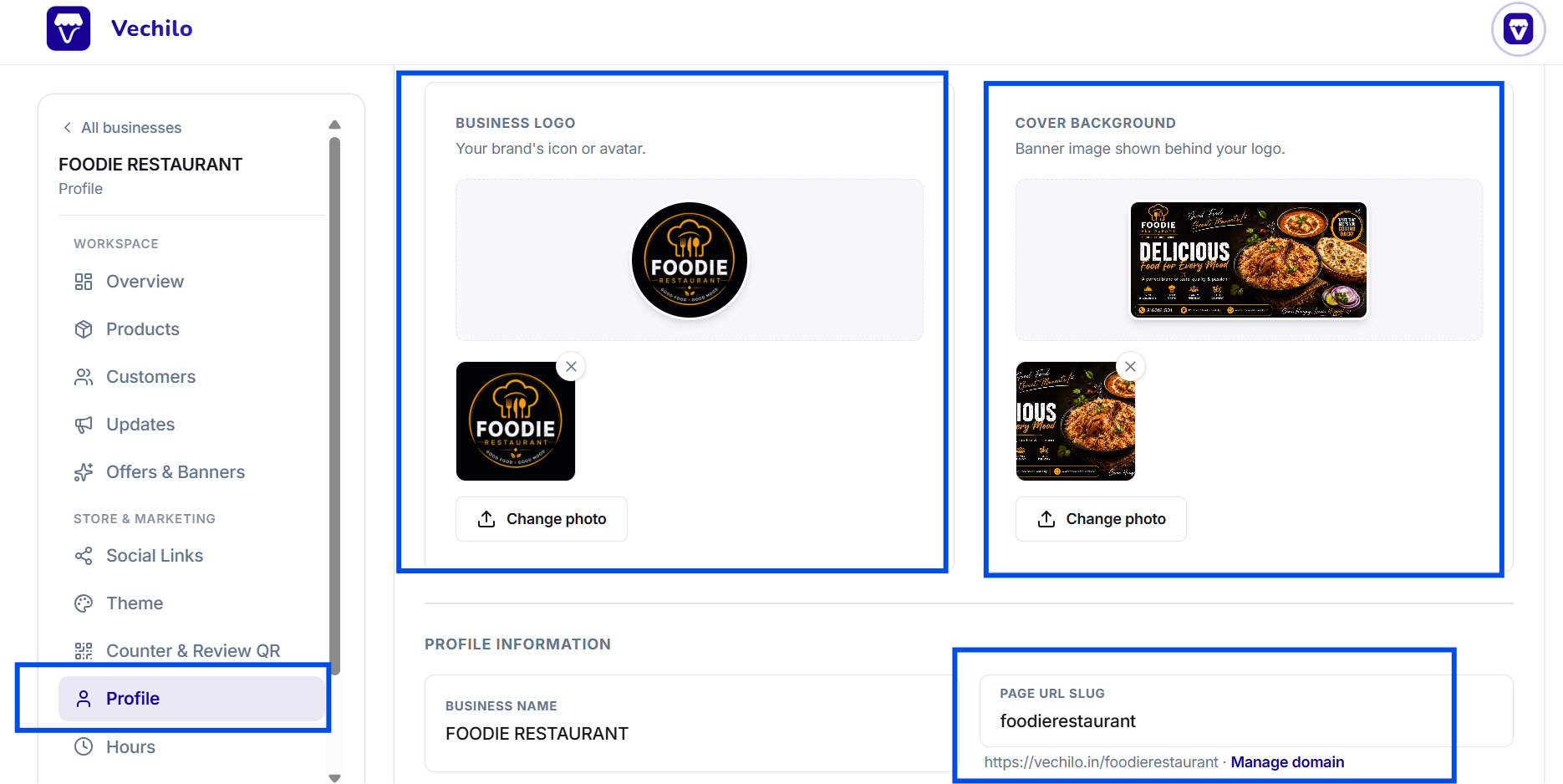
Go to Profile in the sidebar. At the top you will find two image slots:
- Business logo: your brand icon or avatar, shown at the top of your page. A square image works best.
- Cover background: the banner image behind your logo. Use a photo of your shop, your food, or your work.
Tap Change photo under either one to upload from your phone or computer. Clear, well lit photos taken on your phone are fine. A real photo of your shop performs better than a stock image, because customers are checking whether you look genuine.
Choose your own page address
On the same screen, look for Page URL slug. This is the last part of your web address, so a slug of foodierestaurant gives you vechilo.in/foodierestaurant.
Pick something short and easy to say out loud, because you will be reading it to customers over the phone and printing it on bills. Your business name with no spaces is usually the right answer. If you own a domain of your own, Manage domain next to the slug lets you connect it instead.
While you are here, check your business name, description, address and WhatsApp number. If your page was created from a public listing, these are already filled in, so correct anything that is wrong.
3. Change your page design
Open Theme in the sidebar under Store and Marketing.
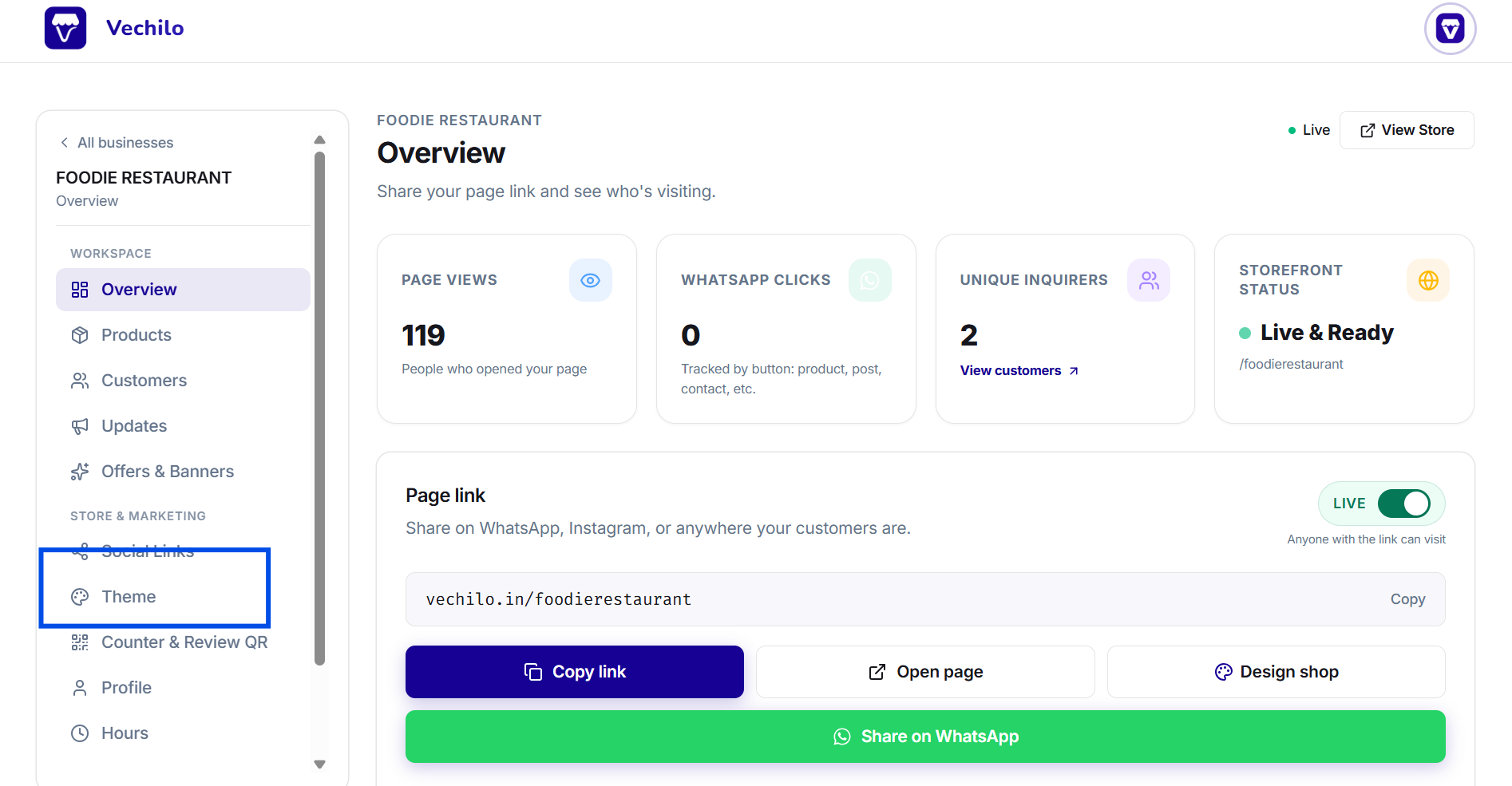
There are two ways to design your page:
- Branded Theme (Simple): pick a ready made theme and a brand colour. This is all most businesses need.
- Custom Theme (Advanced): control fonts, button shapes, spacing and background images yourself.
Under Premium Theme you can choose from designs such as Classic Emerald, Premium Noir, Elite Gold Luxury, Retro Amber and Forest Grove. Open Brand Color Accent below it to set the colour used for buttons and highlights, so it matches your signage or packaging.
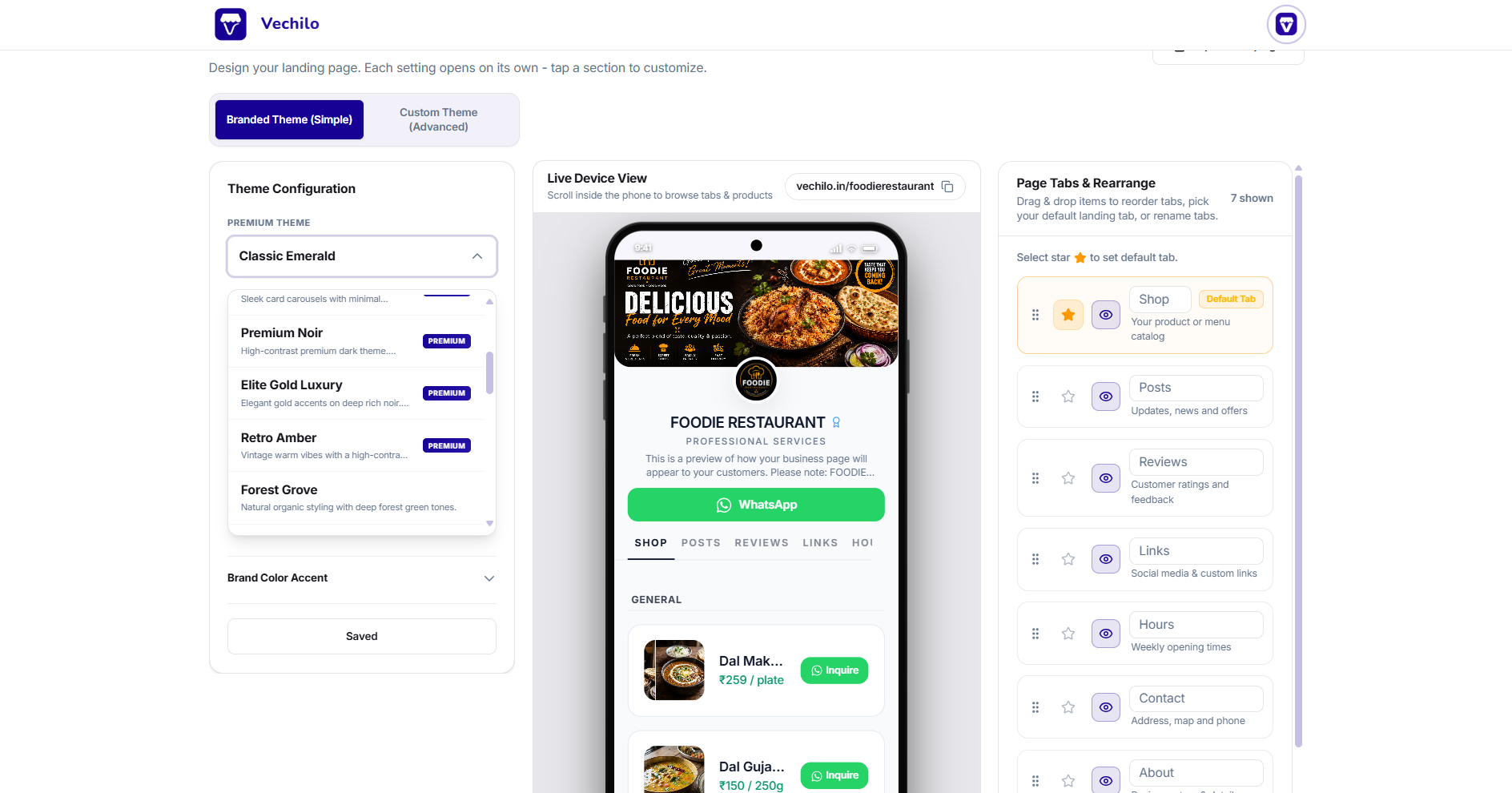
The Live Device View in the middle shows your real page on a phone. Scroll inside it to browse your tabs and products exactly as a customer would, so you can judge a theme before saving it.
4. Reorder the tabs on your page
On the right of the Theme screen is Page Tabs and Rearrange. Your page has tabs for Shop, Posts, Reviews, Links, Hours, Contact and About. Here you can:
- Drag a tab by the handle on its left to change the order.
- Tap the star to choose the default tab, which is the one customers land on first.
- Tap the eye to hide a tab you do not need.
- Rename a tab by typing over its name.
Think about what a first time visitor should see. A restaurant usually wants Shop as the default so the menu appears immediately. A consultant or a service business is often better with About or Contact first.
5. Add your products or services
Go to Products and tap Add product. Add a name, a price and one photo per item.
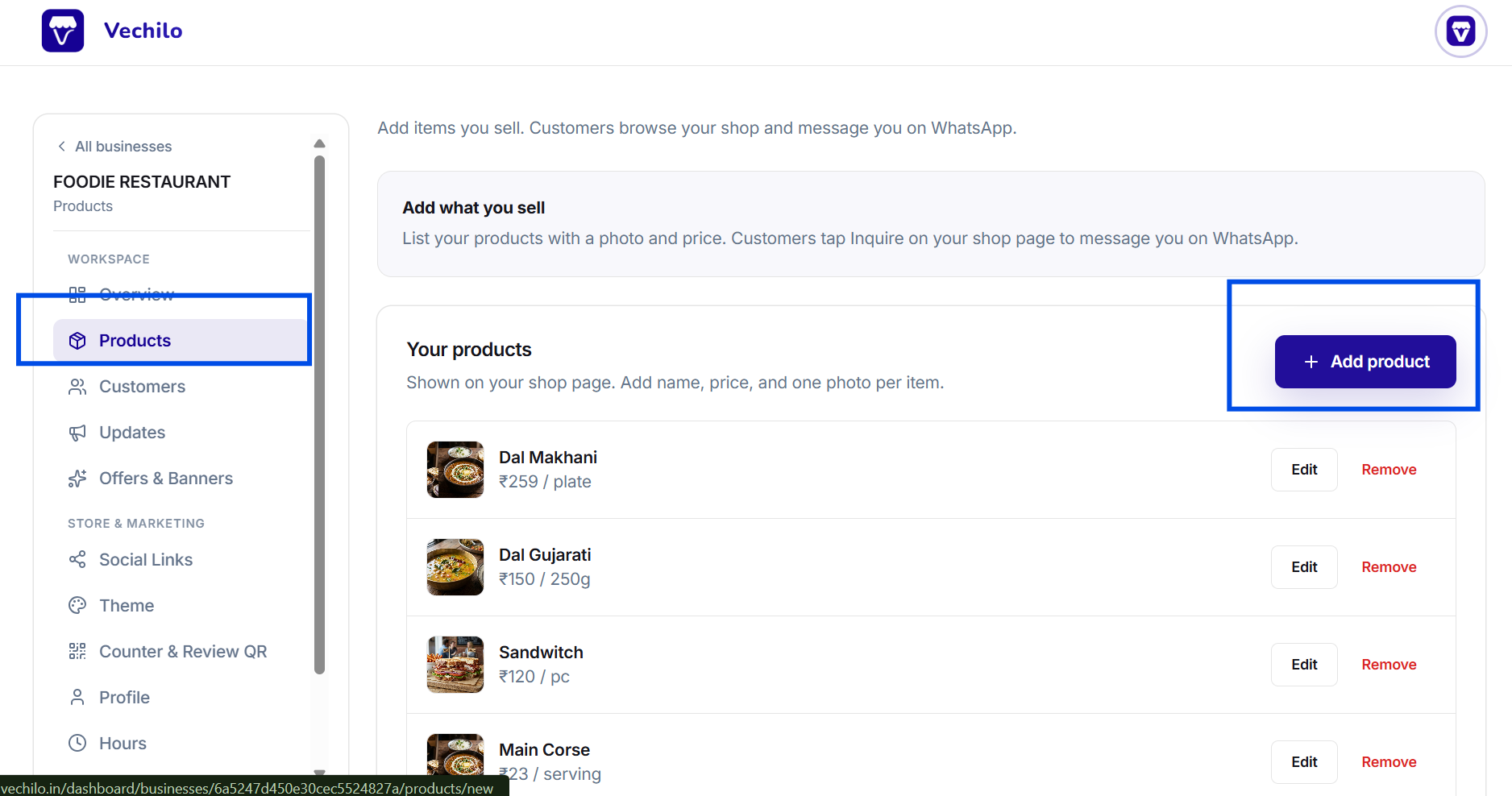
Prices can carry a unit, so you can list a plate, a piece, a serving, 250g, or an hour, whichever matches how you actually sell. Customers browsing your shop page tap Inquire on any product to message you on WhatsApp with that product name already in the chat, so you know at once what they are asking about.
Use clear, well lit photos. You do not need to list everything on day one, so start with your ten best sellers and add more later.
6. Post updates and share them
Open Updates. This is your shop feed, for offers, new stock, festival timings, or a photo of recent work.
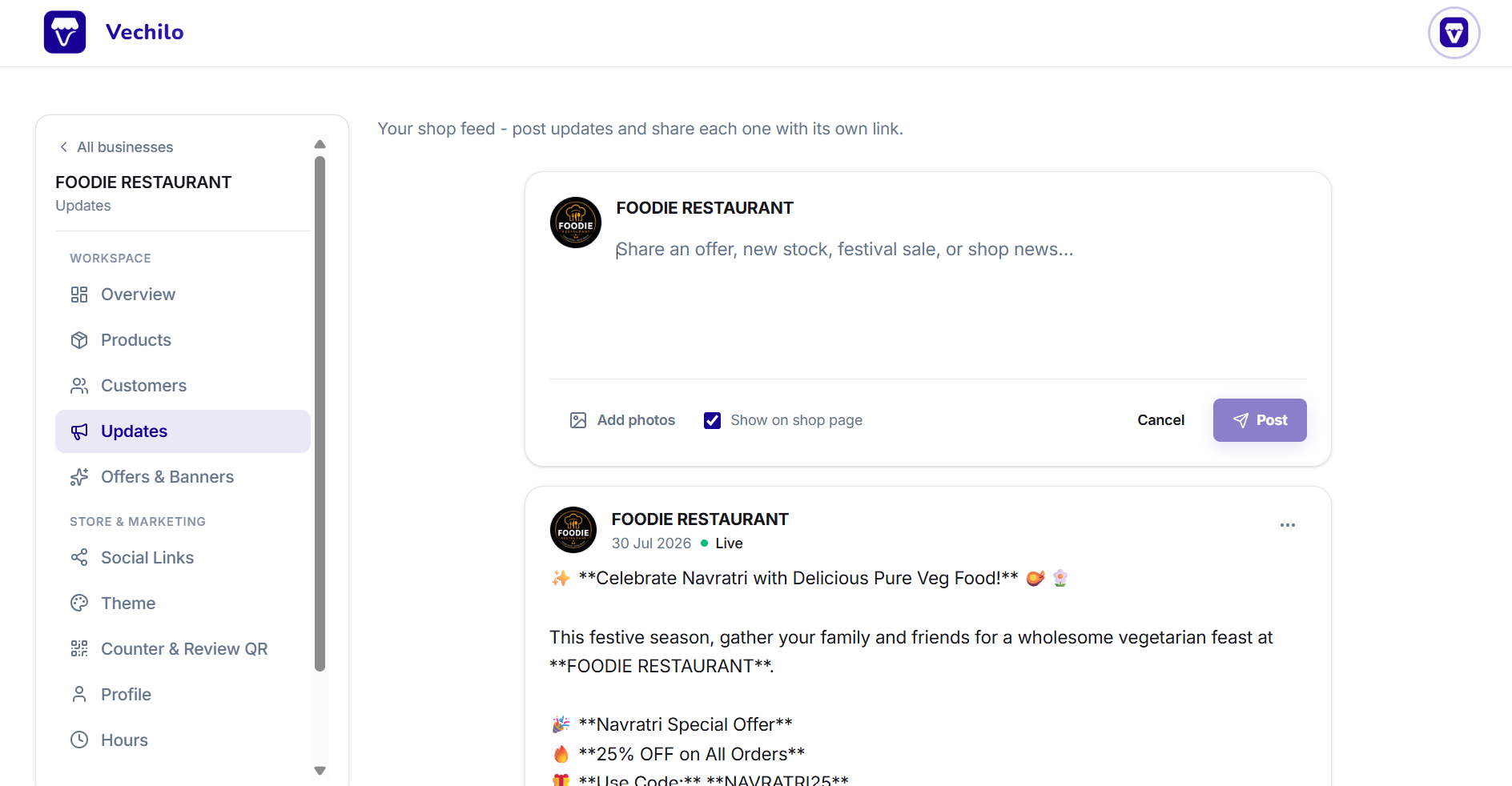
Type your message in the box, tap Add photos to attach images, then tap Post. Leave Show on shop page ticked so it appears under the Posts tab on your page.
Every post gets its own link. Open the menu on a published post to copy it, then send that link straight to a customer on WhatsApp, or put it on your Instagram story. The customer opens the offer directly rather than having to hunt for it on your page.
Posting once or twice a week gives regular customers a reason to check your link again, and shows new visitors that your business is active.
7. Set your opening hours
Under Hours, set your open and close times for each day, and mark your weekly off. Your page then shows a live "Open now" or "Closed" badge, so customers know whether to walk over or message you instead.
8. Print your QR code
Open Counter and Review QR and download your QR code. Print it and stick it on your billing counter, your door, or your carry bags. Walk in customers scan it once and have your catalogue on their phone for next time.
There is a separate review QR that takes customers straight to leaving you a review.
Share your link everywhere
Your page lives at vechilo.in/your-business-name. Put it in:
- Your Instagram and Facebook bio
- Your WhatsApp Business profile and status
- Local WhatsApp and community groups
- Your printed visiting cards and bills
Need help?
If anything is unclear, or you would like us to remove your page, reply to the WhatsApp message you received or reach us from the contact page. A real person will answer.